Clients
To connect to the INDI service, and display the instrument properties you need a client. Clients could be written for a particular instrument, or could be general purpose, able to display any instrument. Two such are are shown below.
indipyterm
The associated package indipyterm provides a terminal client, using the ‘textual’ library, and is also available from Pypi.
https://pypi.org/project/indipyterm
The client can be run from a virtual environment with
indipyterm [options]
or with
python3 -m indipyterm [options]
The package help is:
usage: indipyterm [options]

Terminal client to communicate to an INDI service.

options:
  -h, --help               show this help message and exit
  --port PORT              Port of the INDI server (default 7624).
  --host HOST              Hostname/IP of the INDI server (default localhost).
  --blobfolder BLOBFOLDER  Optional folder where BLOB's will be saved.

  --version    show program's version number and exit
A typical session would look like:
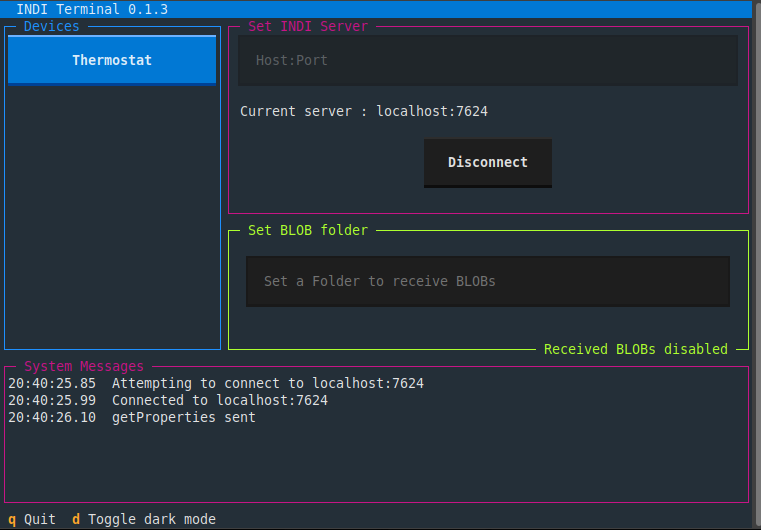
Further information about indipyterm can be found from:
indipyweb
The associated package indipyweb provides a client which serves web pages, and is also available from Pypi.
https://pypi.org/project/indipyweb
The client can be run from a virtual environment with
indipyweb [options]
or with
python3 -m indipyweb [options]
The package help is:
usage: indipyweb [options]

Web server to communicate to an INDI service.

options:
  -h, --help                   show this help message and exit
  --port PORT                  Listening port of the web server.
  --host HOST                  Hostname/IP of the web server.
  --dbfolder DBFOLDER          Folder where the database will be set.
  --securecookie SECURECOOKIE  Set True to enforce https only for cookies.
  --version                    show program's version number and exit

The host and port set here have priority over values set in the database.
If not given, and not set in the database, 'localhost:8000' is used.
The database file holds user and INDI port configuration, and can be
populated via browser using the 'edit' button.
If it does not already exist, a database file will be created in the
given db folder, or if not set, the current working directory will be used.
A newly generated database file will contain a single default username
and password 'admin' and 'password!'. These should be changed as soon as
possible and the INDI host/port set (default localhost:7624).
The securecookie argument is 'False' by default, if using a reverse
proxy providing https connectivity, set securecookie to the string 'True'
to ensure loggedin cookies can only pass over https.
A typical session would look like:
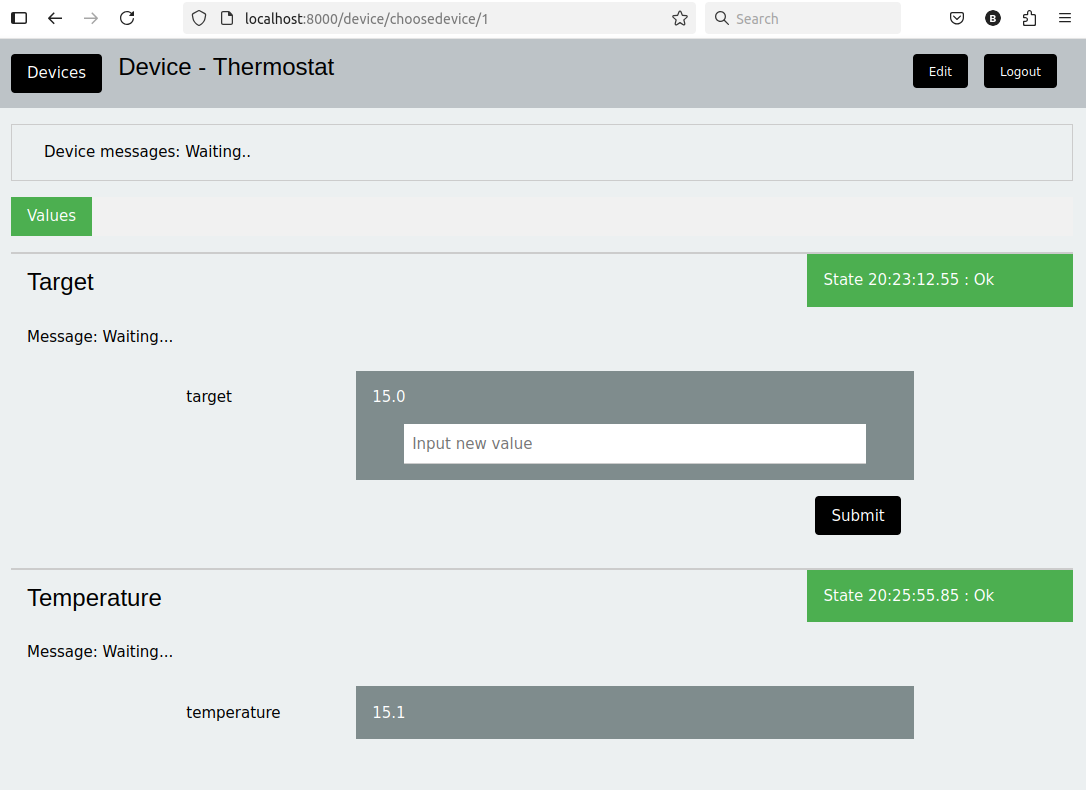
Further information about indipyweb can be found from:
SSH Tunnel
Typically the server will listen on localhost:7624, and a client will run on the same machine, and the port will not be externally exposed.
On a secure network the port could be made externally visible by setting the server to listen on 0.0.0.0
However, a commonly used method applicable to such listening services is to use an SSH tunnel.
Assuming drivers and indipyserver are running on a remote device (raspberry5 in this example)
The indipyserver on raspberry5 is set to listen on localhost:7624 only, so this port is not exposed.
On my own PC, which has ssh public key access to raspberry5, I could simply create a session and run indipyterm on the raspberry5.
However in this example I want to run indipyterm, or indipyweb locally on my PC.
So on my PC I create a tunnel, using
ssh -NL 7624:localhost:7624 bernard@raspberry5&
This creates an SSH tunnel, and the final ampersand runs it in the background. A process such as “[1] 4208” will be shown.
Then run indipyterm, or indipyweb which normally would communicate to my own localhost:7624. But in this case the tunnel forwards my own port 7624 to the raspberry5’s localhost:7624, and indipyterm or indipyweb now connect to the indi service.
This allows a web server to run on my own PC, giving local web access to a remote device via an encrypted ssh session.
To kill the tunnel, type:
kill %1
Where the 1 comes from the “[1] 4208”.